
Available on Shopify Plus only
Boost trust and reduce cart abandonment by adding reviews to your checkout page.
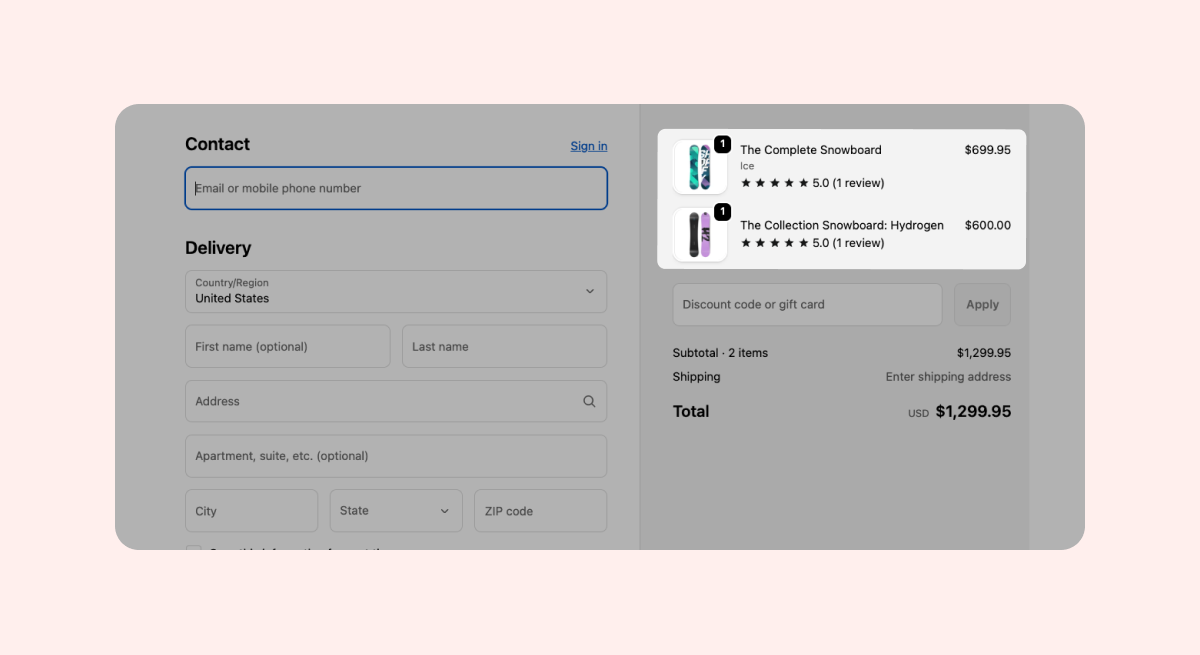
Why show reviews at checkout?
Checkout is a critical moment in the buying journey. Many shoppers abandon their carts because they don’t fully trust the store with their payment details. Showing reviews from other buyers at this stage helps:
Build trust and credibility when it matters most.
Reassure customers that others have successfully purchased from your store.
Reduce checkout abandonment and improve conversion rates.
The Star Rating Widget displays the average rating of each product, giving customers quick reassurance before they complete their purchase.
What it shows:
Star icons for the product(s) being purchased.
Optional rating text, such as average rating, number of reviews, or stars only.
How it works:
The widget appears per product line item at checkout.
It shows the rating for the specific product(s) in the cart.
If a product has no reviews, the widget won’t appear.
How to add the Star Rating Widget to checkout
You can add the Star Rating Widget directly from your Loox admin or from the Shopify checkout editor. To add it from your Loox admin:
In your Loox admin, go to the "Widgets" section.
Find the Checkout Star Rating Widget.
Click “Add to theme.”
Once the checkout editor opens, click the + icon on the Star Rating Widget and click "Add to checkout."
Save your changes.
Note:The star rating widget in checkout is available for Shopify Plus merchants only.
To add the widget directly from your Shopify checkout editor:
Open the Shopify checkout editor and click on "Apps."
Click the + icon on the Star Rating Widget and click “Add to Checkout.”
Save your changes.
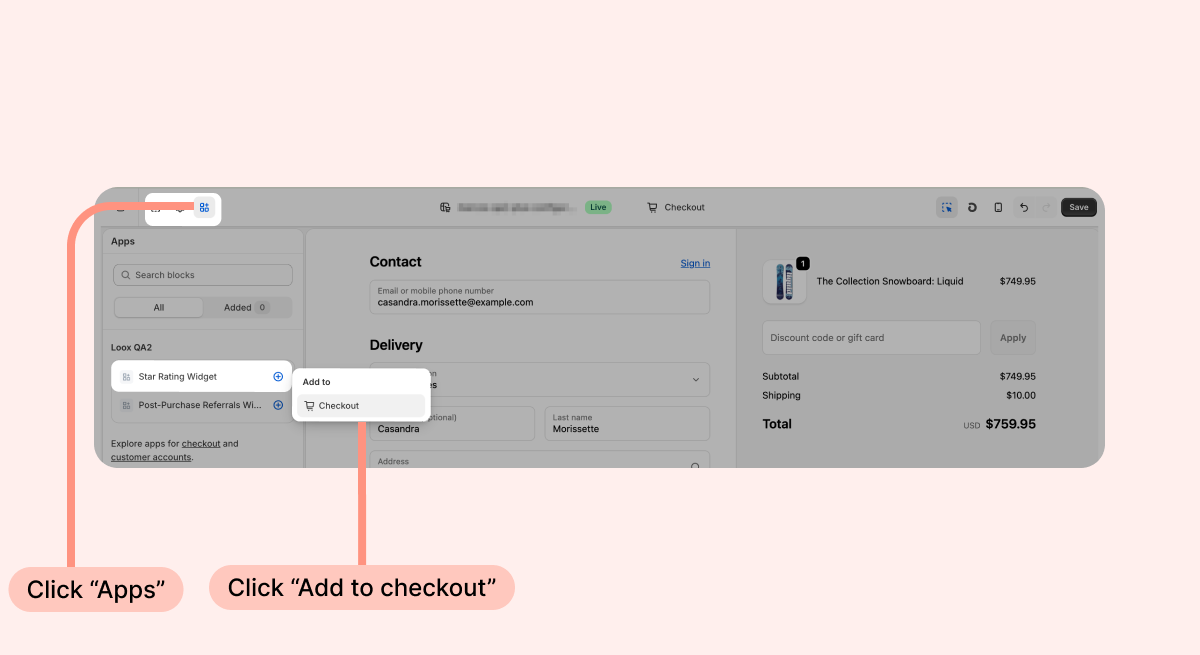
Once the widget is added successfully, it will appear in the checkout preview.
Customize the widget settings
You can control how the star rating widget appears in checkout, including:
Rating text: default (average rating + number of reviews), average rating, number of reviews, or stars only
Star layout: default (5 stars) or single icon
Star style: Loox or Shopify style
Adjust these settings in the Shopify checkout editor, then save your changes to publish the widget.
Note: If you choose the “number of reviews” option, Shopify will detect the customer’s preferred language at checkout and the widget will display the relevant language. Read more about using multiple languages with Loox.
FAQs
Who can use the star rating widget in checkout?
The Star Rating Widget in checkout is available for Shopify Plus merchants only.
What happens if a product has no reviews?
If a product has no reviews, the widget will not appear. The widget only appears on products that have reviews.
Does the widget show ratings per product or for the whole cart?
The widget shows the ratings of each specific product in the customer’s cart.
Can I choose what text appears next to the stars?
Yes. You can choose to show the average rating, number of reviews, or stars only. Custom text is not supported.
Will product groups be reflected on this widget?
Yes. If you’ve set up product groups, the shared ratings of your grouped products will appear on the widget.
Will my custom Loox branding settings appear on this widget?
Yes. If you selected a custom rating icon or color in your Loox branding settings, that will be reflected on this widget as well.
